Microsoft Entra ID Sync Connector Configuration
The Microsoft Entra ID Sync Connector enables automated integration between your Microsoft Azure Active Directory and the Qualys Admin application.
The connector captures the data of the configured groups and their members. The synchronized data is imported into Qualys Administration application, where user group memberships can be managed and applied.
To configure the connector, you must register your application in Azure portal. For more information on the connector, see Microsoft Entra ID Sync Connector.
Configure Connector
To configure the connector, perform the following:
- Log in to Qualys Enterprise™ Platform > Connectors application using an account with RBAC-enabled access.
- Go to Connectors > Integration tab. Among the filters on the left pane, select ADMIN and locate the Microsoft Entra ID Directory Sync Connector. The Connector details page appears.
- Click Manage Connections and then Create Connection.
- Provide a Name and Description for the connector.
- On the Basic Details tab:
- Under Connector Details section, enter the connector name and description.
- Under the Authentication Details section, enter the Tenant ID, Client ID, and Client Secret details.
- Click Test Connection. A success message appears on the screen.
- Click Next.
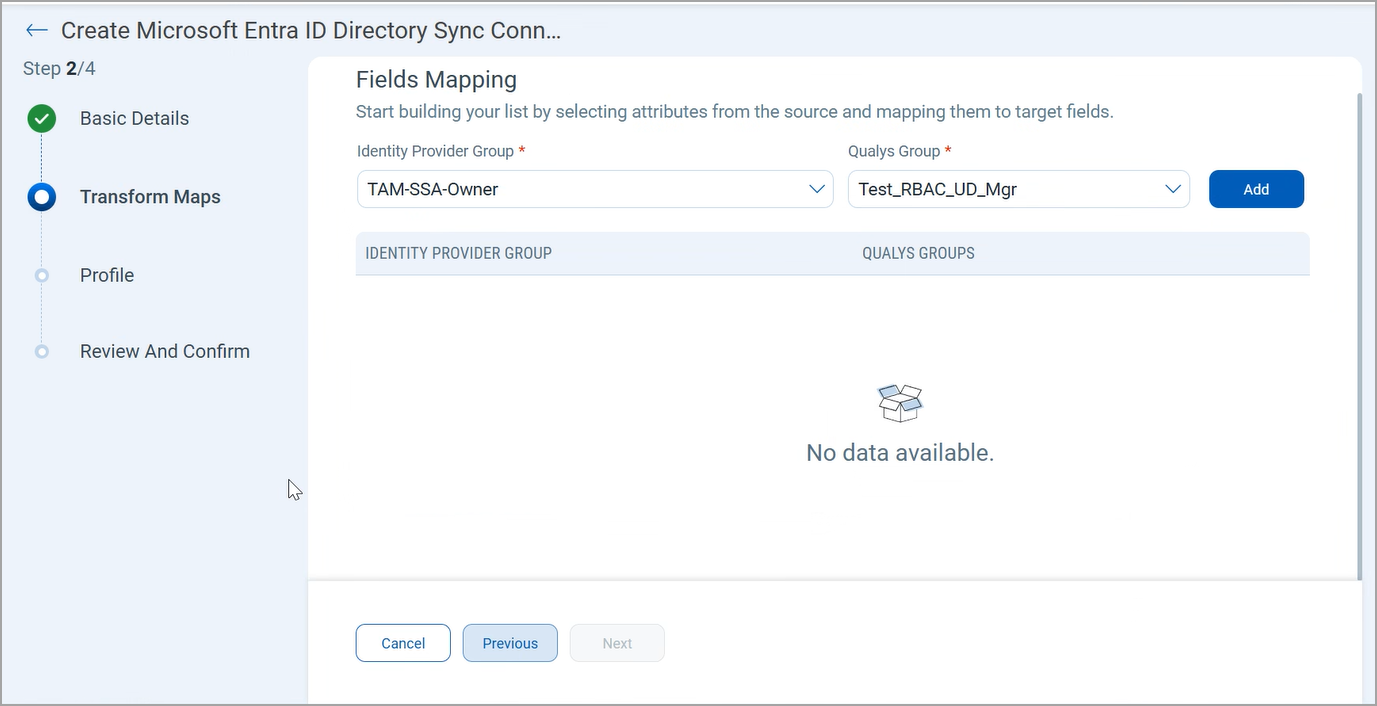
- On the Transform Maps tab, in the Identity Provider Group and Qualys Group fields, select the relevant groups to be mapped.
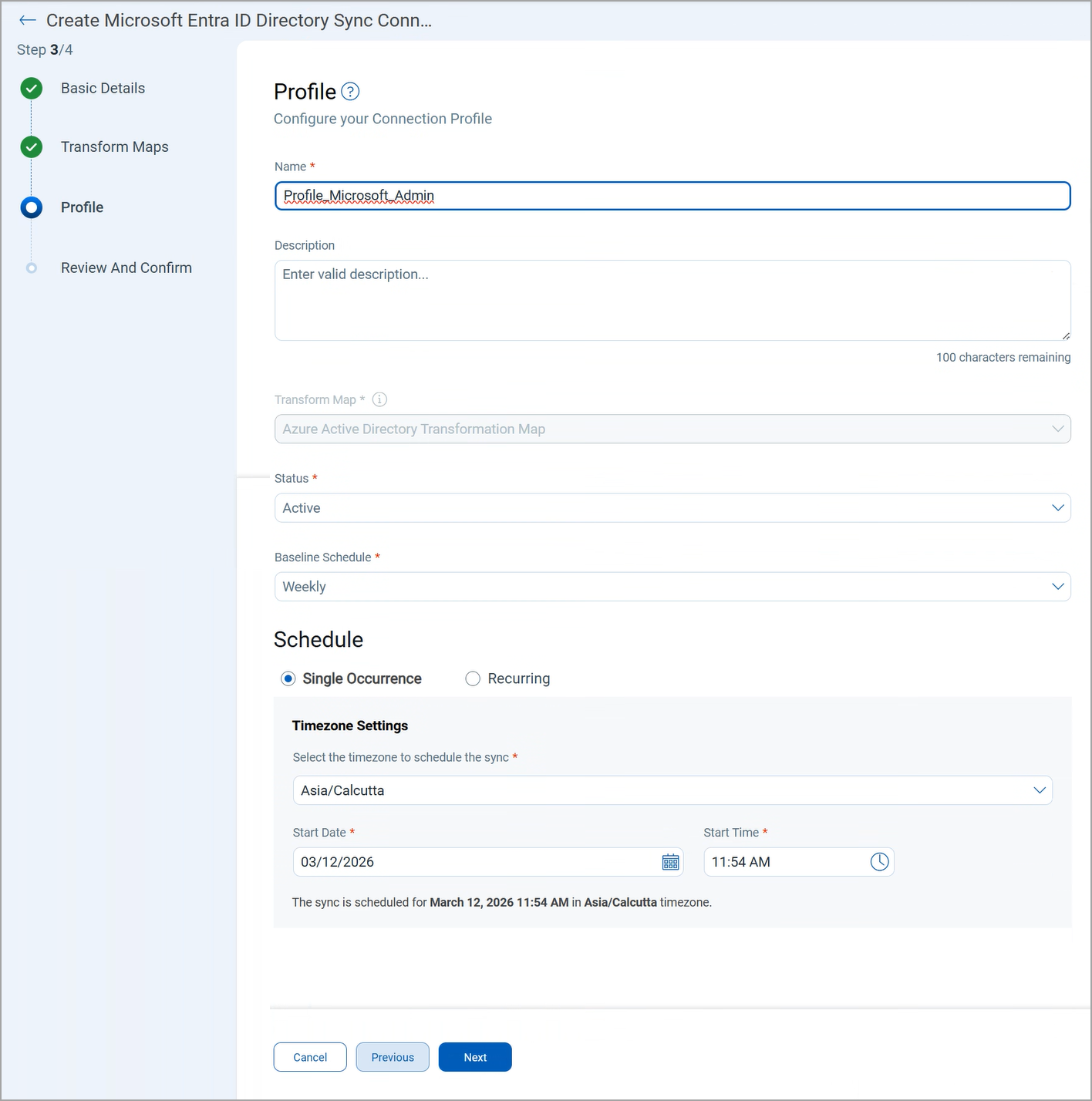
- On the Profile tab, enter the profile name, and set the Status and Baseline Schedule options. Select Single Occurance or Recurring Occurance option and configure the required timezone settings.
- Confirm your selections and click Create.
The connector appears on the Connector listings page. Once the sync is successful, the users are imported to the respective Qualys Admin group.
You can configure the user group scope and permissions as required. For more information, see Qualys Administration Configuration.